


 Updated
In this comprehensive MT5 user guide, you will learn how to navigate one of the most popular trading platforms in the world. Whether you are looking to place your first trade on MT5 or master advanced analysis, detailed explanations and step-by-step instructions are provided.
Key Points
- Learn how to set up MetaTrader 5 (MT5), from creating an account to logging in securely.
- Follow simple guides to place trades, customise charts, and use technical indicators on MT5.
- Discover how to manage trades, automate strategies with Expert Advisors, and receive alerts via mobile or email.
What is MetaTrader 5?
MetaTrader 5 (MT5) is a versatile trading platform that supports trading of multiple assets, including forex, stocks, commodities, and more. Developed as a successor to MetaTrader 4, the MT5 platform offers an expanded range of features and capabilities geared towards the needs of multi-market traders.
On MT5, traders can view live price charts, perform technical analysis with technical indicators and charting tools, track real-time market news and events to support fundamental analysis, and make use of algorithmic trading applications, such as setting up trading robots or performing copy trading via Expert Advisors.
While the software is free to download—often directly from a brokerage like Vantage or the MT5 website—you’ll need to register for an MT5 account with a brokerage to access live markets. Once you have your credentials, simply complete your MT5 account login to start trading. Be aware that this may incur a platform charge, on top of usual trading fees and commissions.
Note that trading carries market risk and may not be for everyone. However, you can request a demo account to try your hand at trading without risking your own money.
MetaTrader 5 Tutorials: Your Essential MT5 User Guide
If you’re wondering how MT5 trading works exactly, we’ve got you covered. Browse the following user guide to help you get familiar with the MT5 trading platform.
How to log in to MT5?
Firstly, sign up for an MT5 account at Vantage.
- Go to the Vantage MT5 website page to sign up for a live account.
- Follow the on-screen prompts
- You will be provided with your MT5 login credentials after signing up
Next, download and install MT5.
- Go to the MT5 download page
- Choose the relevant download package according to your device’s operating system. For this article, we are selecting the download MT5 for Windows
- Install MT5. Once completed, click “Finish”
Perform Your MT5 Account Login.
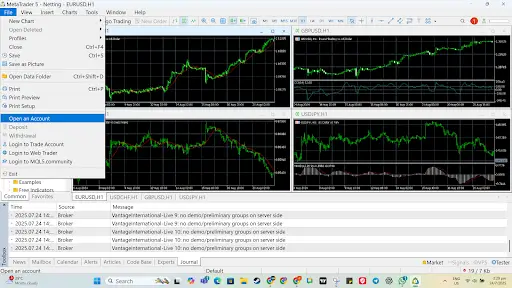
- Open MT5. Go to File in the upper-left corner, then click on Open an Account.
- Enter Vantage International, then click Find your company. Select Vantage when it appears in the list, then click Next.
- On the next screen, choose Connect with an existing trade account. Then enter your username and password. Click Finish.
- You are now logged in and can explore the MT5 platform.
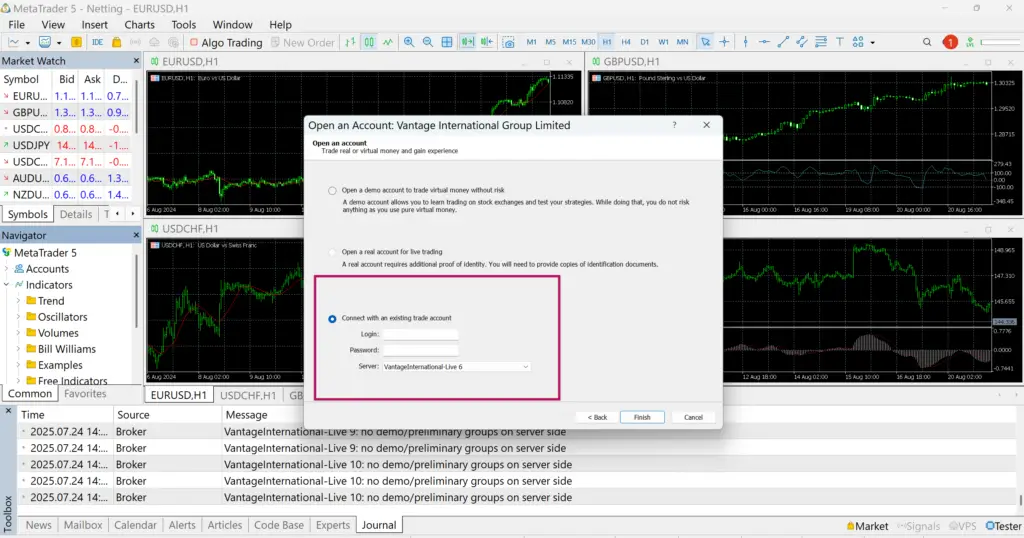
You are now logged in and can explore the platform. (Note: You can also use these MT5 login details online via MT5 WebTrader if you prefer browser-based access)
How to sign out of MT5?
Once you’re done trading, you can simply exit MT5 without logging out. When you start the application again, you will automatically be logged into your account and can resume trading immediately.
But if you have logged into a shared computer, you will need to log off from MT5 to keep your account secure. Follow these steps to do so:
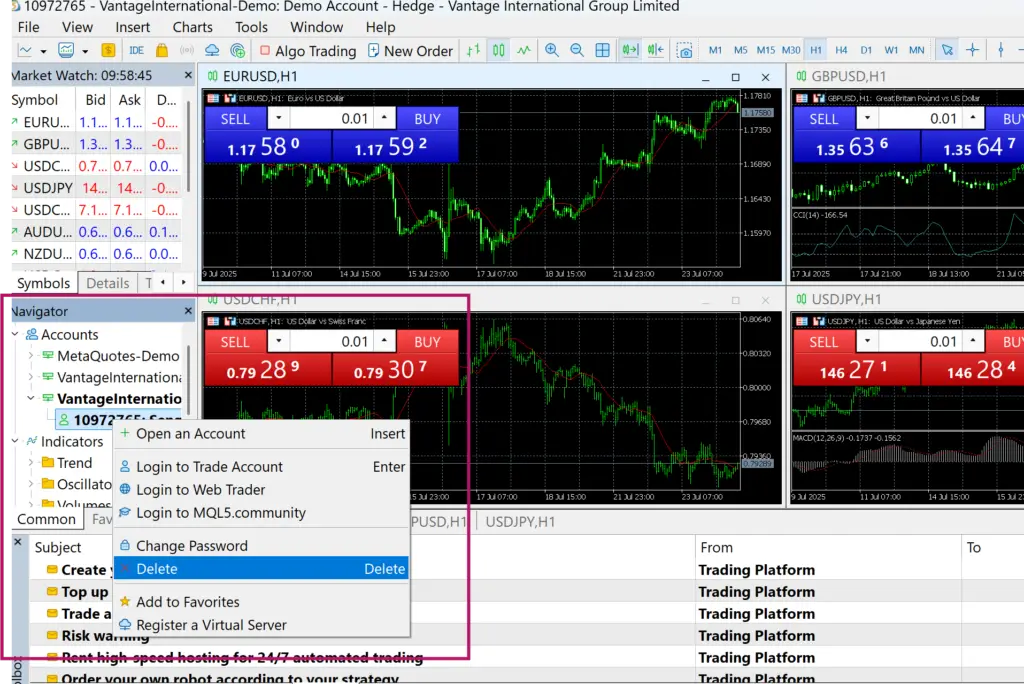
- Under Navigator, click on Accounts to see the list of servers available.
- Click on the server your account is connected to. This will bring up your account.
- Select your account, right-click, then click Delete. This will remove your credentials and log you out of MT5.
How to deposit in MT5
MT5 does not handle fund deposits to your account.
Instead, you can deposit funds using your Vantage customer service portal. Once the funds are cleared, they will appear in your trading account, at which point you can access them to make your trades.
Setting up charts on MT5
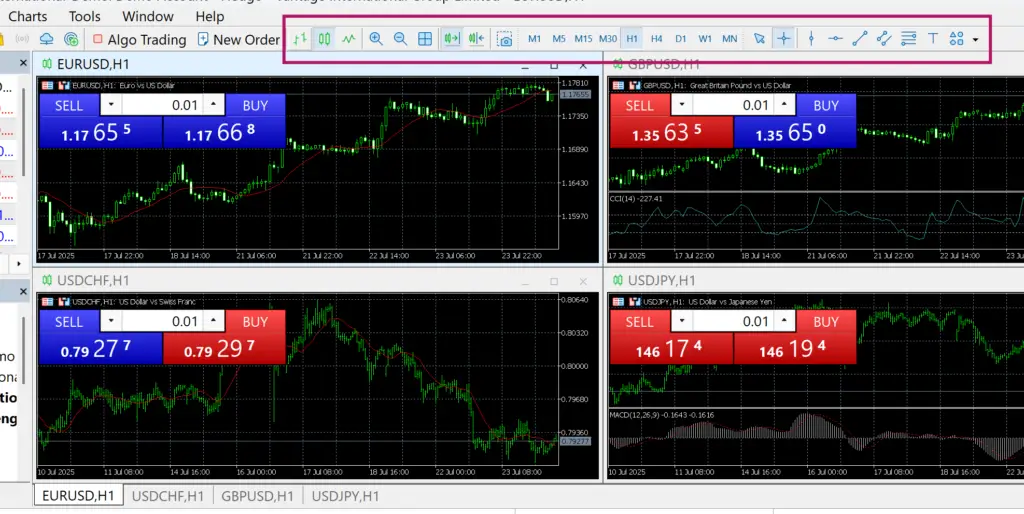
Price charts will be one of the main elements that you will be viewing and interacting with, mostly when trading with MT5. You can customise the appearance of price charts to your preference.
- In the top toolbar, go to Charts, then scroll down to Properties. You can also press F8.
- This will bring up a list of properties you can adjust to your liking.
- When done, click Ok to save your changes or Cancel to revert them
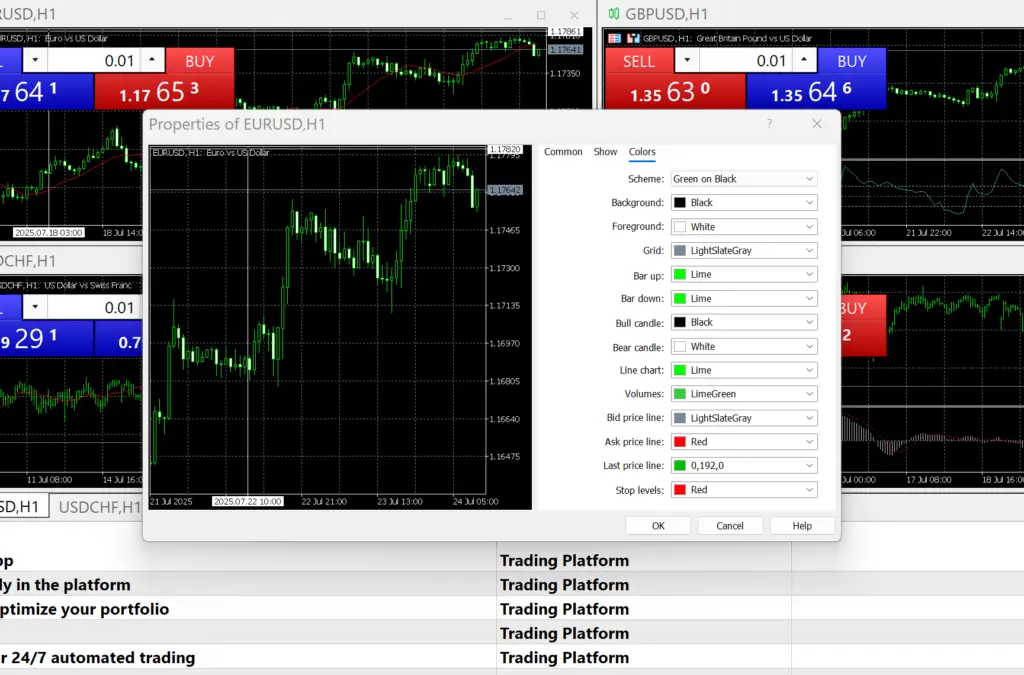
Additionally, you can also change the parameters of the price chart you’re viewing to display different time durations, switch between different chart types, and more. You can do this using the different buttons located at the top of each price chart.
Trading on the MT5 Platform
Now that we’ve covered the basics in this MT5 user guide, including how to manage your MT5 login and set up charts to your preferences, you are ready to move forward. With your MT5 account login secure, we’ll next explore how to place an order and master the essentials of MT5 trading.
How to trade on MT5
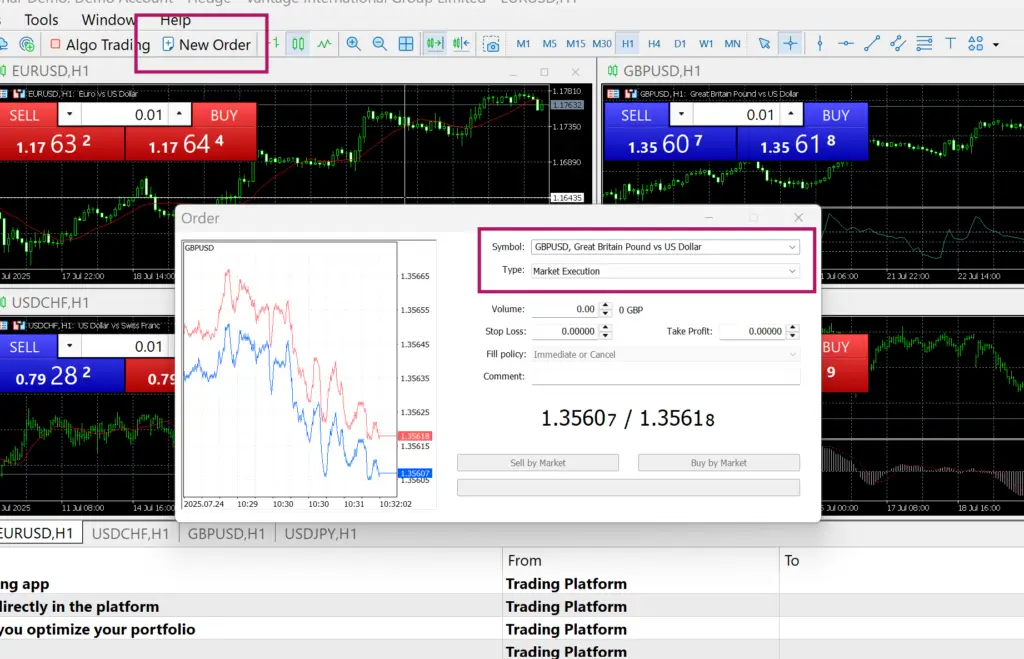
- Start a trade by opening a trade window. You can do this by pressing F9, or clicking New Order in the top toolbar.
- In the trade window that pops up, use the Symbol dropdown list to select the market you want to trade.
- Under Type, the option selected is Market Execution. This indicates that this is a market order, which means your order will be executed immediately at the current market price.
- If this is the type of trade you want to make, you proceed by selecting the volume, setting your stop-loss or take-profit, and then clicking Sell or Buy, according to whether you’re going long or short on the position.
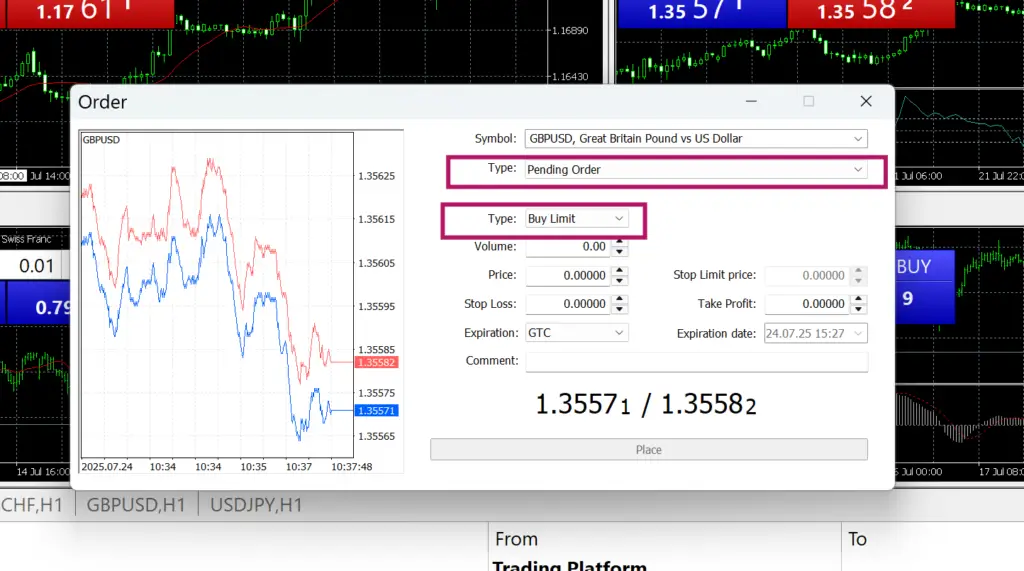
If you want to use limit orders, you can do so by switching your order type.
- Under Type, select Pending Order. This will alter the options that appear below.
- You will now be able to select different limit orders from the dropdown menu that appeared.
(a) Buy limit: Executes a buy order at a specific price or better
(b) Sell limit: Executes a sell order at a specific price or better
(c) Buy stop: Activates a buy order when a certain price has been met
(d) Sell stop: Activates a sell order when a certain price has been met
(e) Buy stop limit: Executes a buy order when a target price has been met, but not exceeded
(f) Sell stop limit: Executes a buy order when a target price has been met, but not exceeded - Enter the rest of your trade parameters, including volume, stop-loss, take-profit, and expiration date.
- Once done, click on Place to place your trade. MT5 will attempt to fill your order when the stipulated conditions are met.
How to enter short position in MT5
Short-selling allows a trader to speculate on price movements by taking positions that may benefit from falling market prices. This is achieved by borrowing the asset from the broker, then selling it immediately at the market price. When the price falls, the trader can buy back the assets from the market at the lower price and return them to the broker, aiming to benefit from the price difference.
In MT5, you can open a short position simply by opening a Sell order on an asset you do not own. When the price of the asset falls to your target profit level, you may close your position with a Buy order, completing the transaction.
Viewing open trades on MT5
You can view your trades in the bottom panel of MT5, along with your remaining funds, and your overall position (profit or loss).
- Click on Trade in the bottom left. All your trades will be displayed.
- You can also click on each individual trade to see more details. This is useful for tracking your trades.

How to add and remove indicators in MT5
Technical indicators are used to decipher past price action on a price chart to forecast potential future price action. Many are based on mathematical principles, while some use pattern recognition as a basis instead. Technical indicators come in various types that are designed to measure different market characteristics, such as trading volume, rate of change, price trends and levels, and more.
The MT5 trading platform comes with a variety of popular technical indicators that you can add to your price chart. This allows you to carry out technical analysis without having to leave the app.
Here’s how you can add indicators to price charts in MT5.
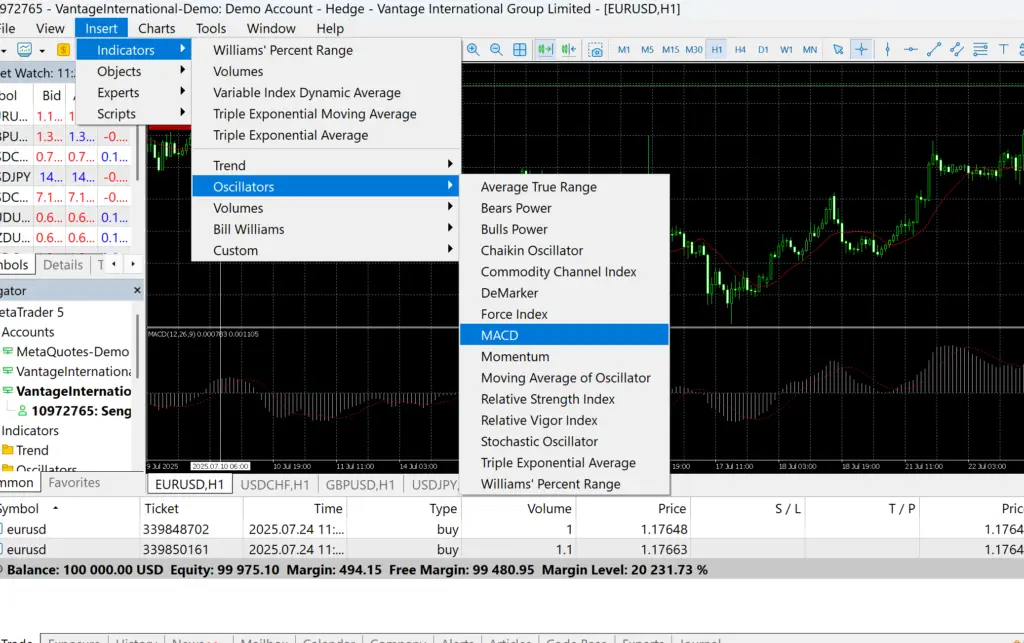
- In the top toolbar, go to Insert, Indicators.
- You will see a list of available technical indicators, sorted according to type.
- Choose the indicator you want to use. You can tweak the indicator’s settings by altering the values presented, or simply use the default.
- Click on Ok and the selected technical indicator will be added to your chart.
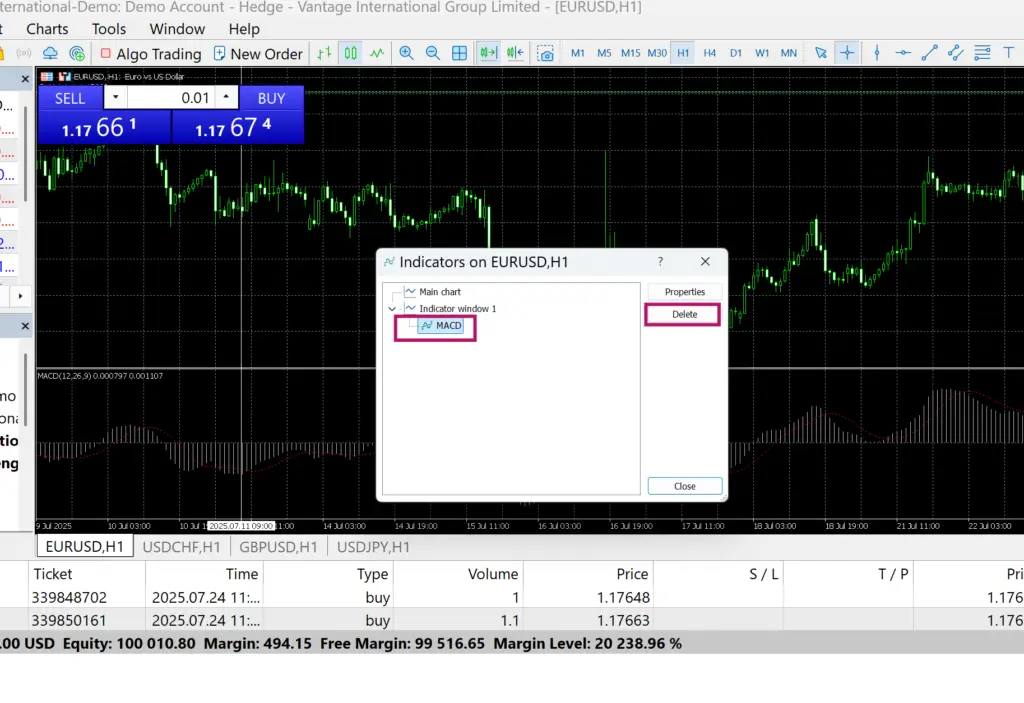
If you want to remove an indicator from your chart, go to the top toolbar, select Charts, then Indicator List.
In the pop-up window, you can select the indicator you want to remove, then click Delete.
Installing MT5 indicators
You can install additional indicators besides the ones that are already available by default in the MT5 platform. This will give you more indicators to try out, allowing you to further fine-tune your strategies.
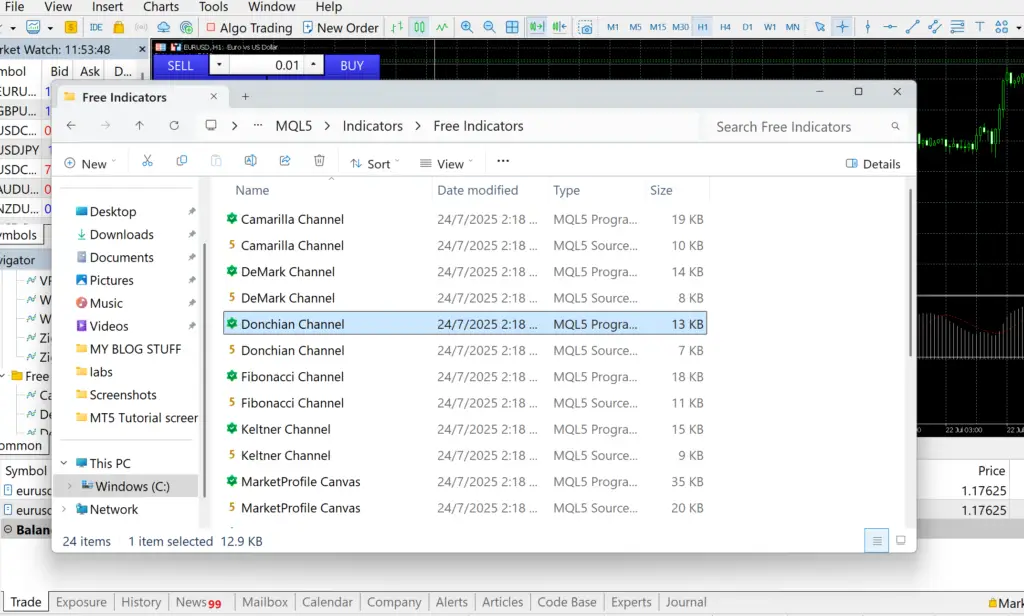
- In the top left of the screen, go to File, Open Data Folder.
- Double-click the MQL5 folder in the window that pops up.
- Then double-click the Indicators folder.
- Select the indicator you want to install. Then double-click the MQL5 program file.
- The indicator will be installed on MT5, and you can select it using the steps explained above.
Setting up notifications on MT5
You can set up MT5 to send push notifications to your mobile phone and to your email. This feature makes it handy to keep track of your trades on MT5, alerting you when your orders are executed.
Send push notification to mobile
- Download MT5 on your mobile device. You’ll need to sign in using your own MT5 login credentials.
- Once done, in the MT5 app, go to Settings, then click on Chats and Messages.
- Scroll down to the bottom to see your MetaQuotes ID. Copy it down.
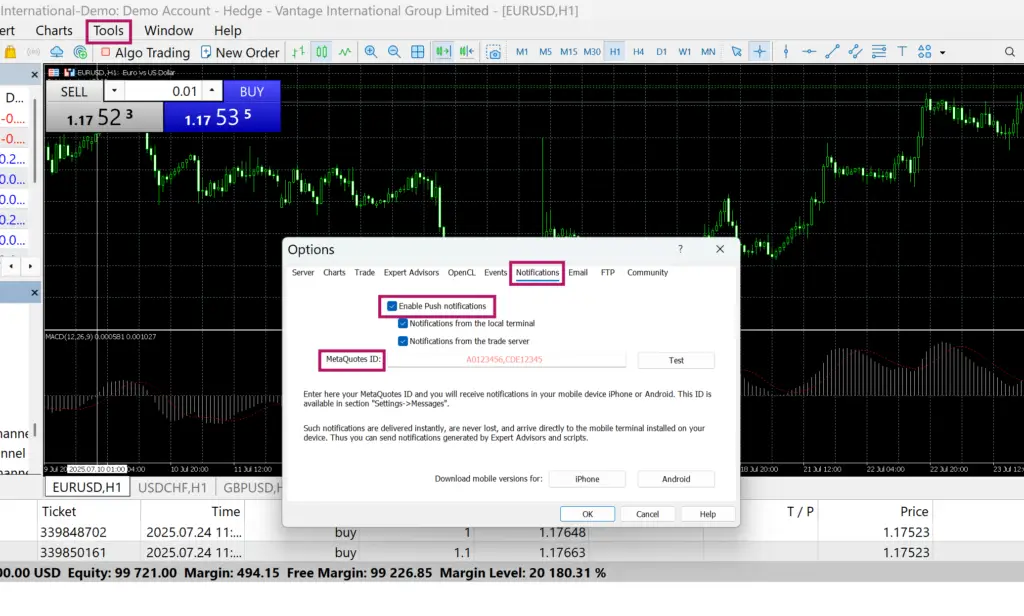
- Next, log in to MT5 on the PC. Then, in the top toolbar, go to Tools, Options.
- Click on Notifications, then select Enable Push Notifications.
- Fill in your MetaQuotes ID.
- Click Test. This will send a test notification to your mobile phone.
Send push notifications to email
You can also get MT5 to send notifications to your email instead. This is useful if you do not want to install the MT5 mobile app.
- In the top toolbar in MT5 desktop, click Tools, then Options.
- Click on the Email tab. Click Enable email notifications.
- Fill in the required information.
- Click Test to send a test email.
- Once done, click OK
How to set up EA in MT5
For those seeking MT5 automated trading, this section of our MT5 user guide covers Expert Advisors (EAs). Often functioning as a dedicated MT5 trading bot, an EA is a software program that automates strategies based on predefined rules. It acts as an effective MT5 trade manager, analysing market conditions and executing trades without human oversight. This helps streamline your MT5 trading activity, allowing you to respond to market conditions automatically.
How to install EA in MT5
The platform comes with a selected number of EAs, which you can set up immediately after your MT5 login. You can also purchase an advanced EA from the MetaTrader marketplace and install it yourself.
- In the MT5 desktop application, click the Algo Trading button in the top toolbar. Make sure the green symbol is displayed.
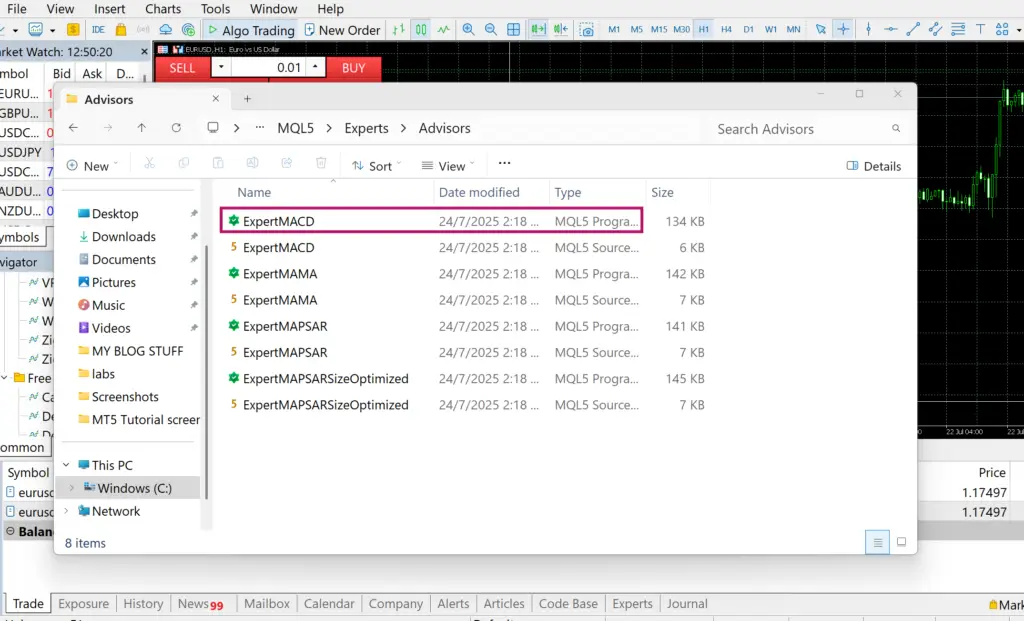
- Next, go to File, Open Data Folder, double click on MQL5, and double click on Experts.
- Select the EA you want to install, and double-click the MQL5 Program file.
- The selected EA will be added to MT5 and will appear in your Navigator window.
How to run an EA in MT5
- In MT5, scroll to Expert Advisors in the Navigator panel.
- Select the EA you want to use. Drag it onto the price chart of the market you want to analyse or trade.
- Check the Inputs tab on the pop-up window to confirm the settings. Once they are to your satisfaction, click OK to start the EA.
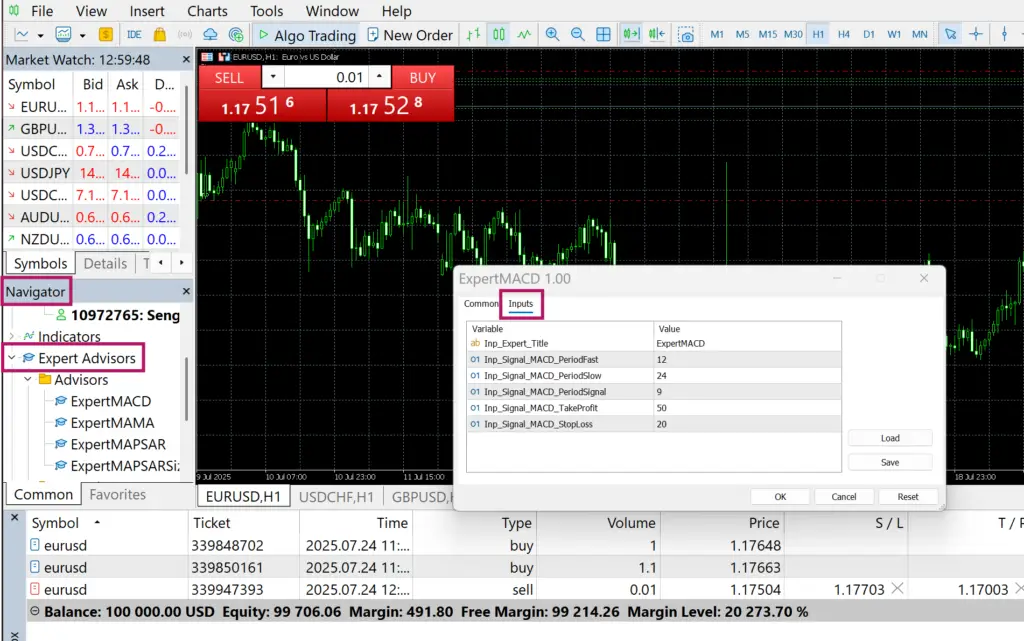
If you want to remove the EA, you can do so with the following steps:
- Right-click on the price chart.
- Go to Experts List
- Select the EA you want to remove, and click Remove.
How to withdraw from MT5
MT5 does not handle deposits or withdrawals of trading funds, it merely allows you to make and execute trades on the market.
To withdraw your funds, you should go to your Vantage customer service page. There you can view your account balance, and make fund withdrawals to your linked bank account.
Choosing an MT5 broker
MetaTrader 5 is a powerful trading platform and versatile tool that is highly capable of supporting the ambitions of all traders, no matter their experience level. As detailed in this MT5 user guide, mastering the software is only one factor in having a satisfying investment journey.
Equally important is partnering with the right brokerage. Vantage offers high-speed, reliable connectivity for your MT5 trading, providing access to real-time price feeds that may assist with order placement during active market conditions. This is crucial for trading strategies, especially when volatility is high, ensuring your MT5 trading bot or manual trades execute efficiently.
Additionally, Vantage does not charge any extra fees for using the platform—simply complete your MT5 account login to access top-notch features without paying extra. However, do note that add-ons such as custom indicators and EAs may require payment before they can be used.
Another factor to consider is market selection, which can vary from broker to broker. Vantage offers access to leading markets across stocks, bonds, commodities, forex and more via CFDs, offering a broad range of instruments for users to explore.
Getting started with MT5 on Vantage
With these step-by-step instructions for various operations, from your initial MT5 account login to opening and monitoring your positions, this MT5 user guide introduces the core functions of the MT5 trading platform. You can take these tutorials as jumping-off points to further explore, as you now know how the system works.
Interested in learning more about CFD trading? Vantage offers access to the MT5 platform with competitive spreads, low fees and transparent pricing structure. Our friendly customer service team offers round-the-clock assistance and support in case you encounter any issues or have any questions. Hone your knowledge over at our Academy, where you’ll find articles, seminars and courses tailored to traders of all experience levels, including beginners like you.
You can explore live or demo accounts with Vantage to get started on MT5.
RISK WARNING: CFDs are complex financial instruments and carry a high risk of losing money rapidly due to leverage. You should ensure you fully understand the risks involved and carefully consider whether you can afford to take the high risk of losing your money before trading.
Disclaimer: The information is provided for educational purposes only and doesn’t take into account your personal objectives, financial circumstances, or needs. It does not constitute investment advice. We encourage you to seek independent advice if necessary. The information has not been prepared in accordance with legal requirements designed to promote the independence of investment research. No representation or warranty is given as to the accuracy or completeness of any information contained within. This material may contain historical or past performance figures and should not be relied on. Furthermore estimates, forward-looking statements, and forecasts cannot be guaranteed. The information on this site and the products and services offered are not intended for distribution to any person in any country or jurisdiction where such distribution or use would be contrary to local law or regulation.